 Luma
Luma Edit track and album info
Library, updated
Wrong title, missing year, an album under the wrong artist? Luma lets you edit the info of every song and every album right in the app, no computer needed.
Edit a song's info
- Touch and hold the songin any list.
- Choose “Edit Info”The editor opens with all fields.
- Change and saveAdjust the fields and tap Save.
| Field | Meaning |
|---|---|
| Title | The name of the song. |
| Artist | Who sings or plays the song, features included (“Artist feat. Guest”). |
| Album | Which album the song belongs to. |
| Album Artist | Who the album belongs to. Together with “Album” it decides where the song is filed. Empty = same as Artist. |
| Track No., Disc No. | The order within the album, including multi-disc sets. |
| Year, Genre | For sorting and for dynamic playlists with year or genre rules. |
| Cover | Artwork for this song only. You change the album artwork in the album info. |
Edit a whole album
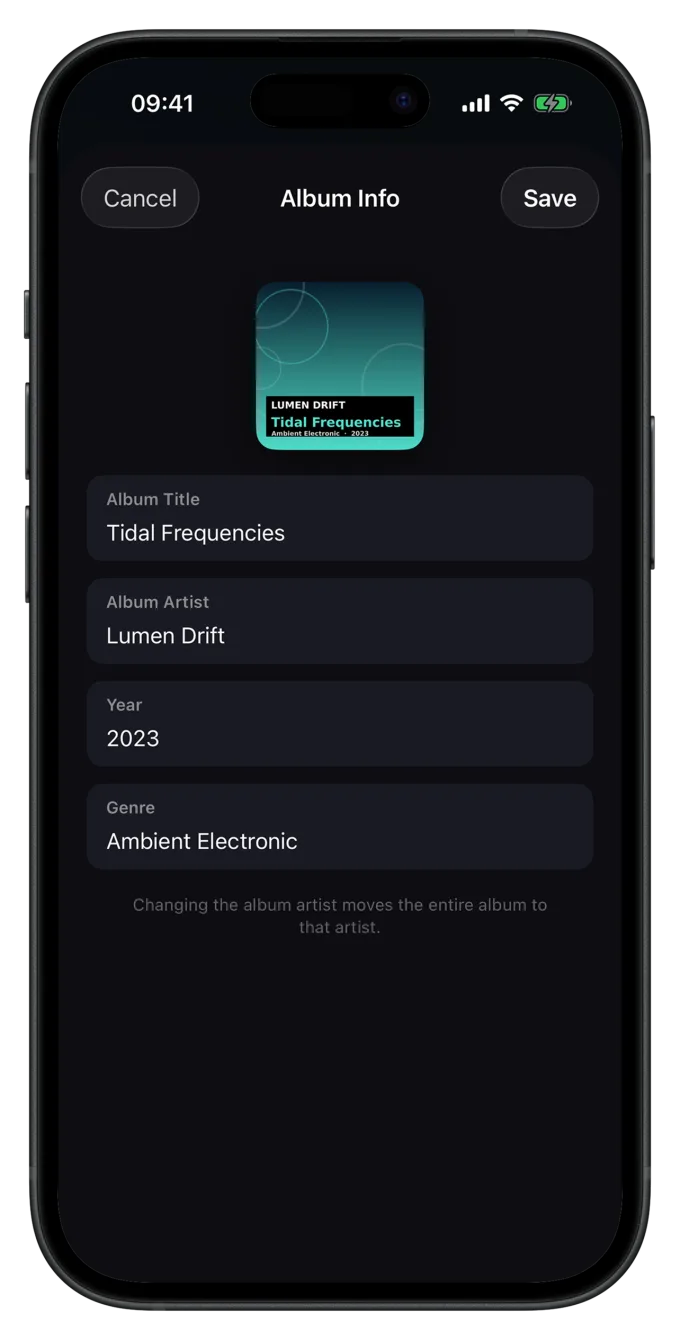
Touch and hold an album, or open it, and choose Edit Album Info. Here you change Album, Album Artist, Year, Genre and the artwork for every song on the album at once.
A new album artist moves the whole album to that artist. Songs with their own artist, such as features, keep their artist.
Is the music file changed?
For MP3, M4A/M4B (AAC and ALAC) and FLAC, Luma also writes your changes into the file itself, or more precisely into Luma's copy of the file. Only the changed fields are touched. Audio, artwork and every other tag stay byte for byte as they were, nothing is re-encoded. Luma checks the new file before it replaces the old one; if anything fails, the old one stays unchanged.
Formats like WAV or AIFF don't store the usual tags. There, changes only apply inside Luma, and Luma tells you so while you edit.
Luma never changes your original file in iCloud Drive or on your computer. Only the copy in the library is edited.
Tutorial: An album shows up twice
The most common problem in any library: an album falls apart into two or more tiles, often with just a few songs each. The cause is almost always inconsistent tags between the songs.
- Find the differenceOpen both album tiles and compare the songs via Edit Info. Typical culprits are a different album artist (for example on features), a typo in the album title (“Deluxe” vs. “Deluxe Edition”) or an extra space.
- Align the album infoOpen the smaller of the two tiles and choose Edit Album Info. Enter exactly the same album name and album artist as on the other part.
- SaveAfter saving, the songs move into the existing album and the duplicate tile disappears.
For compilations with many artists, set the album artist of every song to the same value, such as “Various Artists”. The album then stays together.
How to make a whole collection consistent at once, with a genre vocabulary, years, artwork and settings for Picard and Mp3tag, is covered on the blog in Make your metadata consistent.
Changing artwork
In the editor, tap the artwork and choose Choose from Photos or Choose from Files. Photos are picked without any photo permission and are never uploaded. Remove custom cover (for a song) or Remove cover (for an album) takes artwork you've set away again.
Still have a question or found a mistake? Email hello@suenavus.com.