 Luma
Luma Browse and organize your library
Library, updated
Luma organizes your music by artist and album automatically when you import it. The Library tab is your home for everything you own.
How the library is laid out
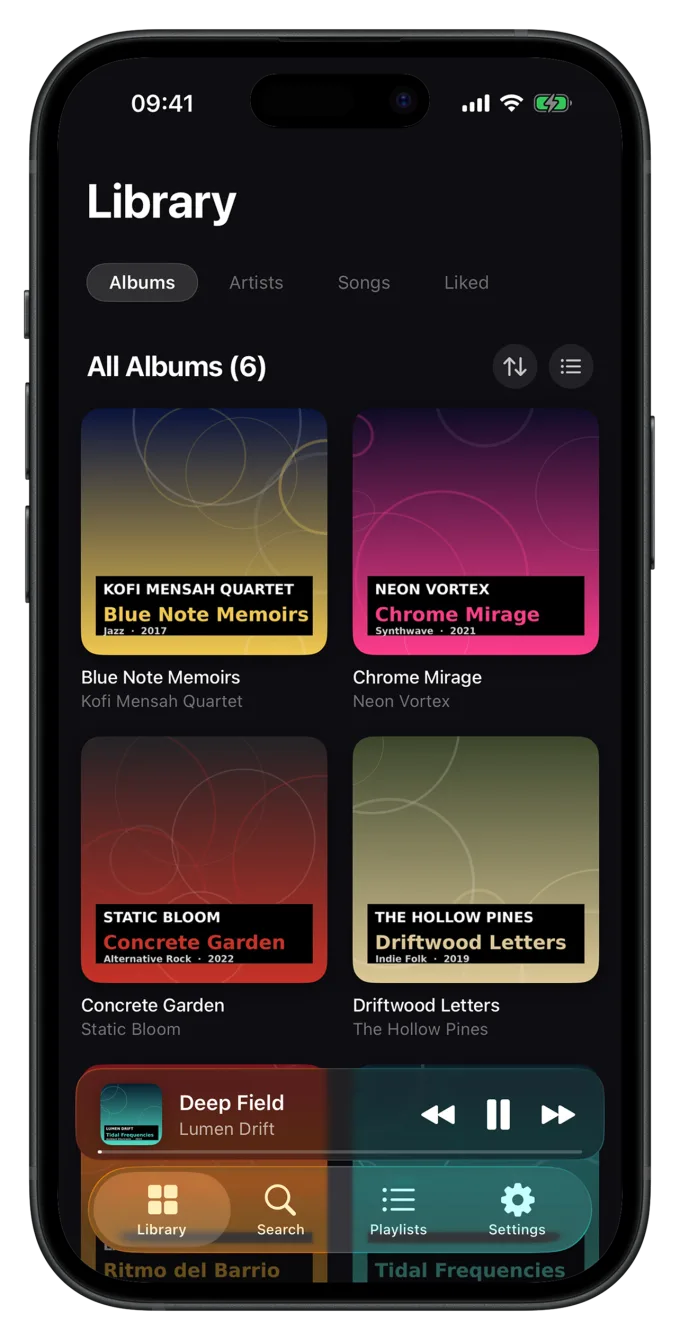
At the top you choose between four views:
- Albums: all albums as a grid or a list.
- Artists: every artist with their whole discography on one page.
- Songs: every track in one list.
- Liked: all songs you've marked with a heart.
Below that, the home screen shows what you recently added, and the playlists and collections you've pinned.
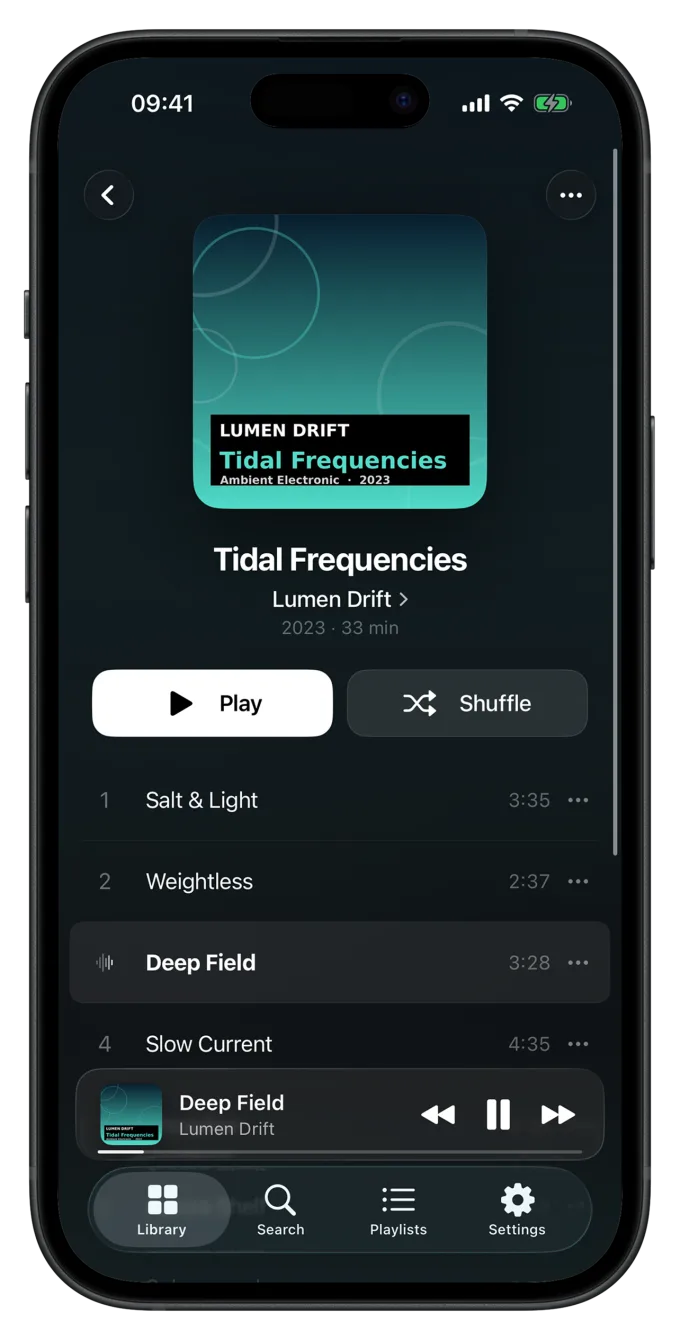
On the iPad and the unfolded iPhone Duo, more albums fit side by side, five in portrait and seven in landscape on the large iPad. Album, playlist, artist and collection pages show the artwork on the left with the name and buttons beside it there. This is new in Luma 1.6.
Sorting and showing albums
In the albums view, the sort menu orders by Title, Artist, Year or Recently Added. Whether albums appear as a Grid or a List is set in Settings › General › Home.
Artists and features
Luma groups albums by the album artist. A song with a guest (“feat.”) therefore stays on its album instead of splitting it into several parts. In an album's track list Luma shows the differing artist under the song title. You can turn that off in Settings › Appearance › Show Artists Under Titles.
If an album still shows up twice or under the wrong artist, inconsistent tags are usually to blame. The fix is in An album shows up twice.
Liking songs
Touch and hold a song and choose Add to Liked, or tap the heart in the player. All liked songs are in Library › Liked and in the dynamic playlist “Liked”. To like several songs at once, use Select in an album's or playlist's menu.
Searching
The Search tab searches songs, artists, albums and playlists at once. Results are grouped by type, so you can jump straight to the artist or album. Inside an album or playlist you can also search just that list.
- History: your recently opened results appear below the empty search field. Remove an entry with the x next to it. To turn history off entirely, go to Settings › General › Search Tab › Show History.
- Into the queue: swipe songs in the results and in your history to add them to the queue, just like in the library. See The swipe gesture.
Customizing the home screen
In Settings › General › Home you decide:
- whether albums appear as a grid or a list by default,
- whether the Recently Added section is shown,
- which playlists and collections are pinned, and in which order. Drag an entry by its handle to move it.
Pinned playlists are the quickest way to your favorite lists: they appear at the top of the home screen.
Deleting songs and albums
From the menu (touch and hold) you delete a song with Delete Track or a whole album with Delete Album. That removes the tracks and their audio files from Luma for good. The original file you imported from isn't touched.
Deleted songs also disappear from every playlist and from your statistics. The only way to get them back is to import them again.
Still have a question or found a mistake? Email hello@suenavus.com.