 Luma
Luma Create and design playlists
Playlists & Collections, updated
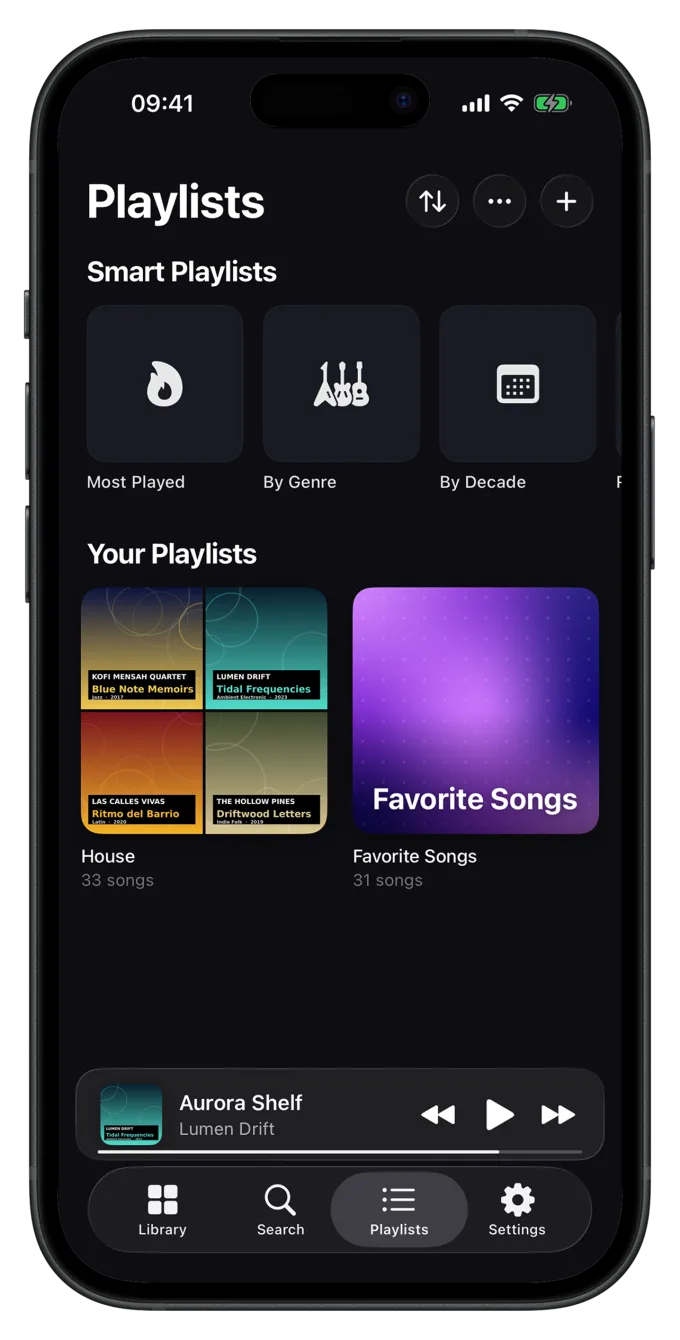
Playlists are your own mixes. Luma gives each one a cover automatically, which you can make your own in a few taps.
That's what collections are for: they hold whole albums instead of single songs, such as an artist's complete discography.
Create a playlist
- Open the Playlists tabtap + at the top and choose New Playlist.
- Enter a nameand confirm with Create.
- Pick songsThe song picker opens right away. Tap the songs you want and confirm with Done. With Later, the playlist stays empty for now.
In the picker you search by title, artist or album at the bottom, and Select All takes every song found. The top always shows how many songs are selected, even after you leave the search. The chevron next to the search field only hides the keyboard and keeps your search. Songs already in the playlist aren't added twice.
Later you fill a playlist with Add Songs in the playlist's menu (•••), and an empty playlist shows the button right away. Or touch and hold a song, an album or another playlist in the library and choose Add to Playlist.
When you pick several songs with Select (see below), adding them also offers New Playlist. That creates the playlist and fills it in one step.
Many songs at once
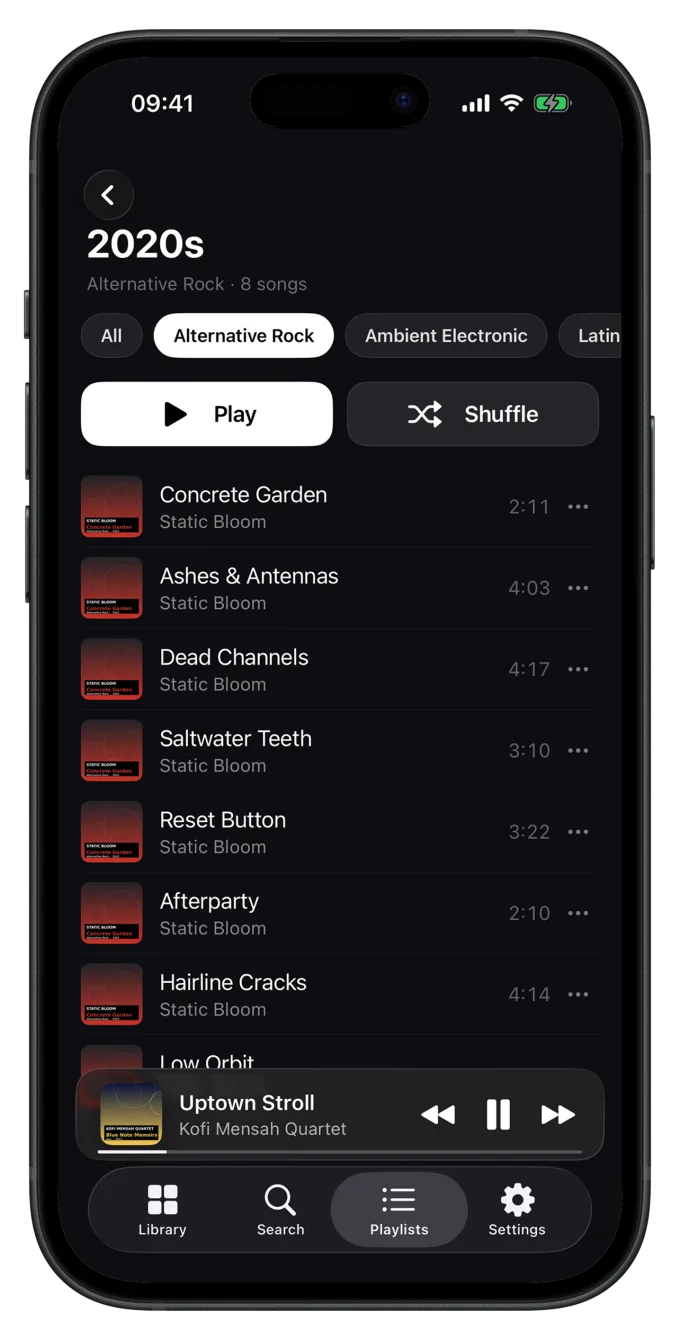
Open an album or a playlist, tap the menu (•••) and choose Select. Mark the songs you want, then:
- Add to Playlist: put all marked songs into a playlist,
- Like: like all marked songs,
- in a playlist, also: remove the marked songs from the playlist.
Songs that are already in the target playlist aren't added twice.
Order, name, deleting
In the menu (•••) of an open playlist:
- Edit: drag songs by their handle into a new order.
- Rename: give it a new name.
- Change cover: see below.
- Export Playlist: as a backup file, see Back up playlists.
- Delete Playlist: the playlist goes away, the songs stay in your library.
Remove single songs with a swipe or with Remove from Playlist in their menu.
Designing the cover
Change cover offers three styles:
| Style | What it looks like |
|---|---|
| Mosaic | Built automatically from the artwork of the first songs. Changes with the content. |
| Photo | A picture of your own from the Photos app. |
| Pattern | A generated cover. You pick the pattern, color, texture and a symbol, optionally with the playlist title. |
Luma only receives the one photo you pick and needs no access to your photo library for it. Location and camera data (EXIF, GPS) are stripped, and nothing is uploaded.
Playlists on the home screen
You can pin favorite playlists (and collections) to the top of the library's home screen. That's done in Settings › General › Home, where you also set their order.
Still have a question or found a mistake? Email hello@suenavus.com.