 Luma
Luma Player and queue
Playback, updated
Everything that happens while music plays: from the mini player to the queue, the sleep timer and AirPlay.
The player
As soon as music plays, the mini player sits at the bottom. Tap it to open the full player. There you'll find:
- Artwork and timeline: drag the timeline to jump within the song.
- Controls: previous track, play/pause, next track, plus shuffle and repeat.
- Heart: like the song.
- Menu (•••): show the album or artist, add to a playlist, sleep timer.
- At the bottom: Queue, Lyrics (when available) and the output picker. If you've turned on Technical Details, Details is there too.
On the iPad and the iPhone Duo
Since Luma 1.6, the player uses the whole screen on the iPad and the unfolded iPhone Duo. It opens full screen; in landscape the artwork sits beside the controls, and in portrait on the iPad artwork and controls share a centered column. Swipe down to close it.
The lyrics fill the whole screen there too, in larger type in front of the blurred artwork. The mini player floats in the middle and never gets wider than the player's column. On the iPhone, the folded Duo and in narrow iPad windows, everything stays as you know it.
Shuffle and repeat
Shuffle plays the current selection in random order. Repeat has three states: off, Repeat All and Repeat Track. Tap the icon repeatedly to cycle through them.
The queue
Tap Queue in the player. At the top you see what's now playing, below it what's up next: the rest of the album, playlist or list you started from.
As soon as you queue songs yourself, the list splits into two parts:
- Added by you: songs you queued with “Play Next” or “Play Last”. They play first.
- Then automatically: after that, the original list continues.
Touch and hold a song by its handle and drag it to a new position. Swipe a song to the left to remove it. Reorder reshuffles the upcoming songs, Clear empties the queue.
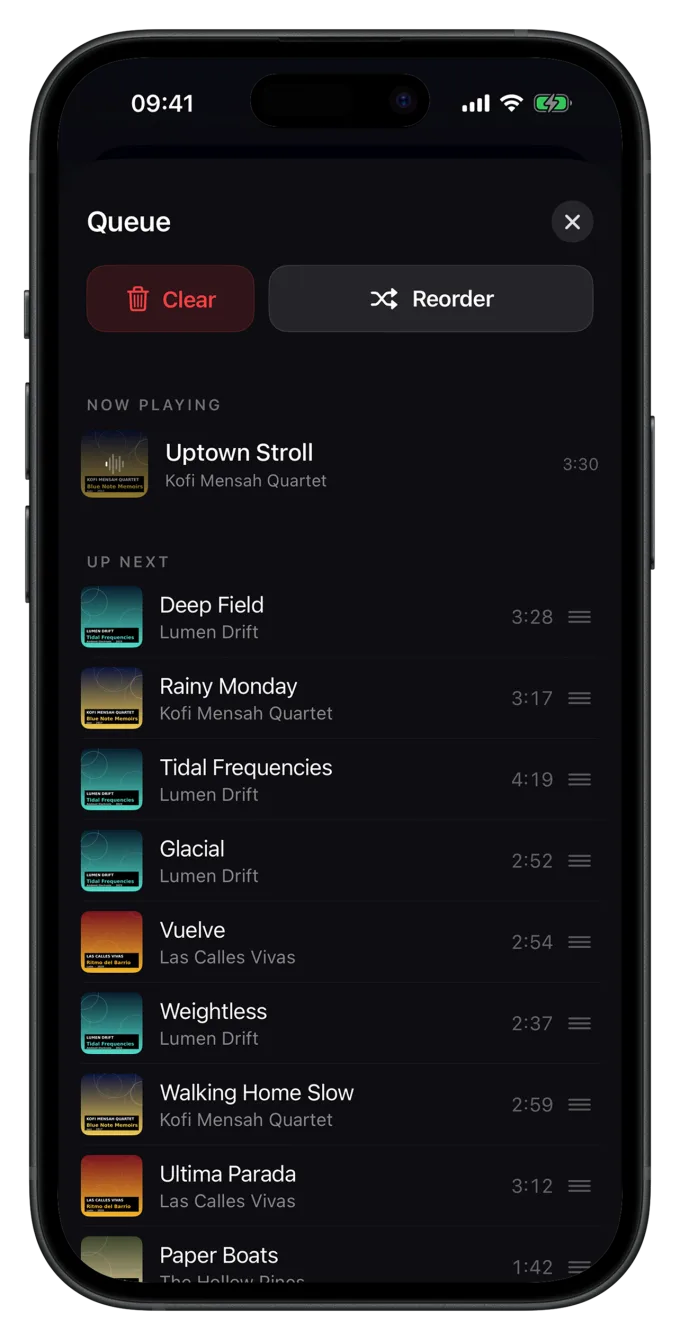
Queueing songs
Touch and hold a song, album or playlist:
- Play Next: plays right after the current song.
- Play Last: goes to the end of the songs you've queued, but still ahead of the ones that follow automatically.
The swipe gesture
It's quicker with a gesture: swipe a song in a list to the left.
- A short swipe shows both actions, Next and To End, to tap.
- A full swipe runs one action right away. Which one is set in Settings › Playback › Swipe gesture: Play next or To End.
A short vibration confirms the song was queued.
Sleep timer
In the player menu (•••), Sleep Timer offers 5, 10, 15, 30, 45, 60 or 90 minutes, or Track End. Just before it runs out, Luma gently fades the music out. While the timer runs, the player shows a small countdown; tap it to cancel the timer.
Pick up where you left off
Luma remembers the queue and position. When you open the app again, everything is back, paused. Luma doesn't start playing on its own and doesn't interrupt another app that's playing.
AirPlay, Bluetooth and speakers
At the bottom of the player you choose the output: iPhone speaker, AirPods, Bluetooth speakers, AirPlay speakers or Apple TV. It's the same picker as in Control Center.
Lock Screen, Control Center, Siri
- Luma keeps playing in the background and with the screen locked.
- The Lock Screen and Control Center show artwork and title and let you pause and skip.
- Headphone controls (AirPods, wired remotes) and Siri commands such as “Next track” or “Pause” work.
- Calls and other interruptions pause the music. If you unplug or disconnect headphones, Luma pauses too, so nothing suddenly comes out of the speaker.
Still have a question or found a mistake? Email hello@suenavus.com.