 Luma
Luma Import music
Getting started, updated
Luma plays music files you own. To get them into the app, you import them once from the Files app. After that they're available offline, even if the originals disappear.
How to import music
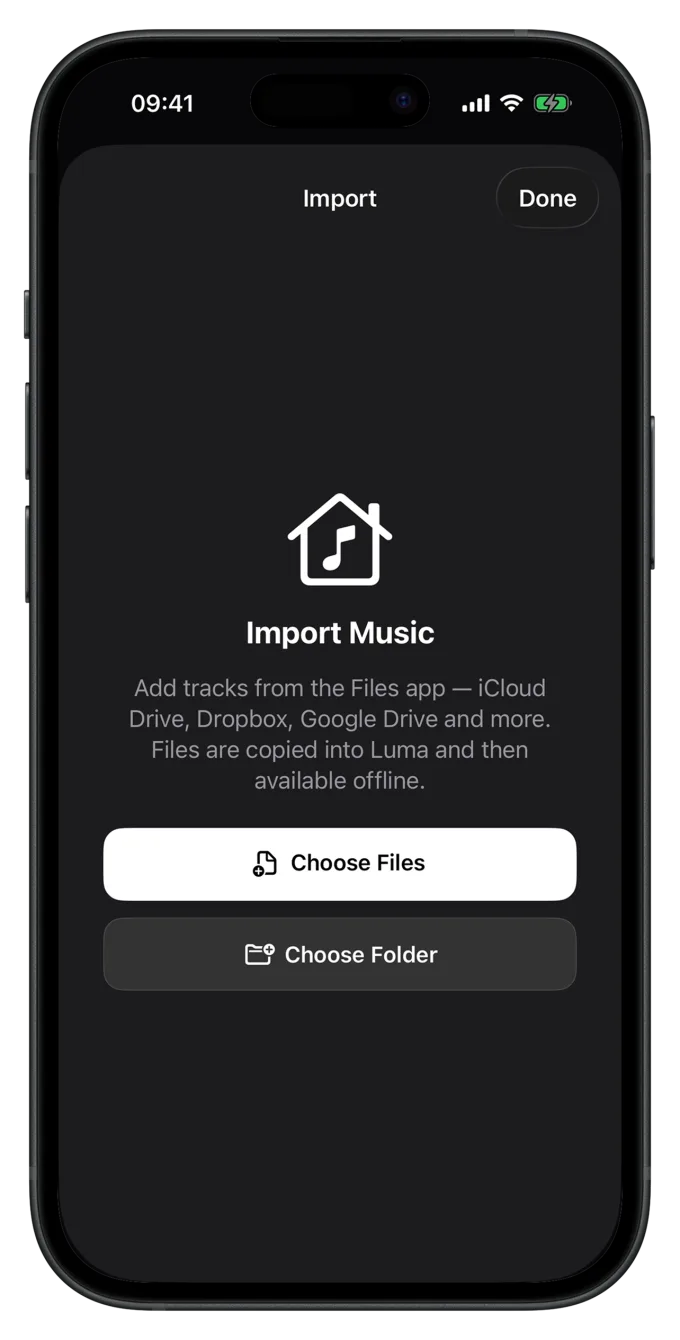
- Open the importGo to Settings › Import Music. In an empty library, tapping + works too.
- Choose files or a folderTap Choose Files or Folders. Select individual songs directly. For a whole folder, open it and tap Open at the top. Folders are searched including all subfolders.
- Wait for the progressLuma shows Importing 120 / 940. Keep the app in the foreground; the screen stays on automatically during the import.
- Read the resultAt the end you see how many tracks were imported, skipped or not supported.
Where your music can come from
Anything that shows up in the Files app can be imported:
- iCloud Drive: files that only live in the cloud are downloaded automatically during the import.
- On My iPhone / iPad: for example files you sent via AirDrop or the Finder.
- Dropbox, Google Drive, OneDrive & co.: as long as the app is set up as a location in the Files app.
- USB stick, SD card or external SSD: connected directly to the iPhone or iPad.
- Network shares (SMB): if you've connected a server in the Files app.
If you open an audio file in another app (Mail, Safari downloads, a messenger) and choose Luma in the share sheet, it's imported directly. Several files in a row are processed one after another.
No detour: the “Luma” folder
In the Files app, under On My iPhone, there's a folder called Luma. It's an inbox for new music: whatever you put there, Luma imports by itself the next time it opens and then clears it away, so nothing takes up space twice. If Luma is already open, for example on iPad in Split View next to the Files app, it starts right away.
- From a computer, you fill the folder over a cable with the Finder or the Apple Devices app, see Music from a computer.
- Files Luma can't read are moved to the Not Imported subfolder.
- Don't put anything there you want to keep as an original: after the import it's gone from the folder and only in your library.
On iPad you can also drag files and folders straight from the Files app or another app onto the Luma window.
Luma keeps its own copy
During the import, Luma copies every file into its own protected storage. Playback never touches the original again. That means:
- You can delete or move the originals in iCloud Drive or on the USB stick. Luma keeps playing.
- Songs take up space once in Luma. If the originals are also on the device, they take up the space twice until you delete them.
- How much space your library uses is shown in Settings › Library & Storage.
What happens to duplicates
Luma recognizes songs that are already in your library and skips them. A song counts as the same if title, artist, album, track number and length match, no matter which folder it comes from or which format it's in. Upper and lower case don't matter. So you can safely import a folder a second time to pick up new songs: only what's missing is added. The result then says something like 12 already in your library. Examples and special cases such as remasters are in How Luma recognizes and matches songs.
Cancel an import
Cancel import stops a running import. Everything imported up to that point stays in your library. Later you can import the same folder again; songs that are already there are skipped.
Good to know
- Supported formats are MP3, AAC, M4A, ALAC, FLAC, WAV, AIFF, CAF and Opus. More in Formats & sound quality.
- If a lyrics file (
.lrc,.elrc,.ttmlor.txt) with the same or a similar name sits next to a song, Luma picks up the lyrics during a folder import. See Lyrics. - Sorted wrong? You can fix track and album info afterwards: Edit track and album info.
Still have a question or found a mistake? Email hello@suenavus.com.