 Luma
Siri and Shortcuts
Playback, updated
Since Luma 2.0, Siri plays your music in Luma. Say something like “Play my Summer playlist in Luma”, and Luma starts, even when the app is closed. This works on iPhone and iPad.
Setting up Siri
- Open the settingsIn Luma, tap Settings › Siri and Shortcuts. At the top you see whether Siri may use Luma yet.
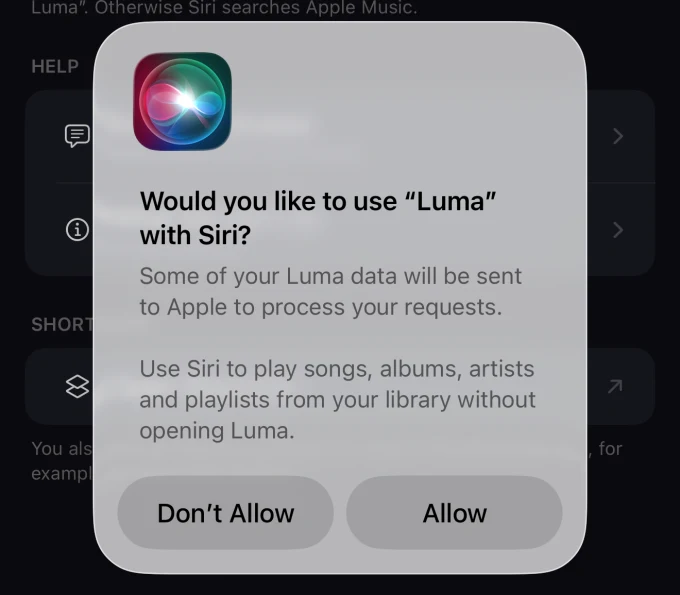
- Allow SiriTap Allow Siri and confirm iOS's question. It then says “Allowed”.
- Try itSay “Play my library in Luma” or one of the example phrases.
Luma only asks about Siri here, never on its own at launch. To take the permission back later, tap Revoke permission. It leads to the iOS Settings for Luma, because an app can't switch the permission off itself. If you declined Siri for Luma, Allow in Settings takes you to the same place.
Always add “in Luma”
End every request with “in Luma”. Without it, Siri searches Apple Music. iOS has no setting to make another music app the default. Siri does learn over time that you use Luma, but “in Luma” is still the safe way.
There's one exception: while Luma is playing, simple commands such as “Pause”, “Next track”, “Shuffle on”, “Repeat on” or “What's playing?” reach Luma even without “in Luma”.
What you can say
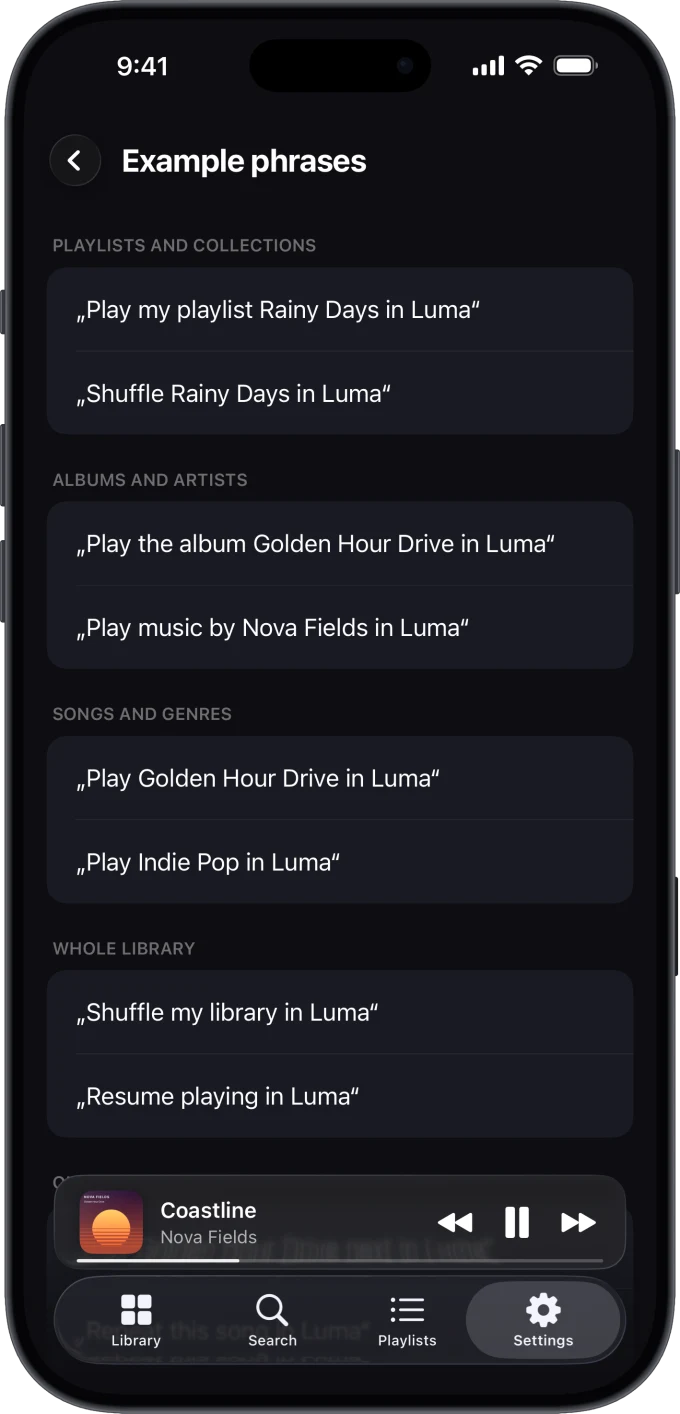
In Settings › Siri and Shortcuts › Example phrases, Luma shows these phrases with names from your own library, so you can say them exactly as written.
| What | Example |
|---|---|
| Play or shuffle a playlist | “Play my Workout playlist in Luma”, “Shuffle Workout in Luma” |
| Album | “Play the album Thriller in Luma” |
| Artist | “Play music by Michael Jackson in Luma” |
| Song or genre | “Play Billie Jean in Luma”, “Play Pop in Luma” |
| Collection | “Play the collection Road Trip in Luma” |
| Whole library | “Shuffle my library in Luma”, “Resume playing in Luma” |
| Play next | “Play Thriller next in Luma” |
| Repeat the current song | “Repeat this song in Luma” |
| Like | “I like this song in Luma” |
| Add to a playlist | “Add this song to Workout in Luma” |
- Resume: without anything specific, Luma continues the last queue. If there is none, the whole library plays shuffled.
- Next: with “next”, Luma queues the song, album or artist after the current song instead of replacing the queue.
- This song: if you don't name anything, Luma means the song that's playing. Adding only works for your own playlists, because dynamic playlists fill themselves by their rules.
- Repeat: “Repeat this song in Luma” repeats only the current song. The general “Repeat on” repeats the whole queue.
Shortcuts and the Action button
For the most common requests, Luma comes with fixed Siri phrases that work without any setup. You also find them in the Shortcuts app under Luma, as Play Playlist, Shuffle Playlist, Shuffle Library and Repeat song. Settings › Siri and Shortcuts › Open Shortcuts takes you straight there.
| Shortcut | Fixed phrases, for example |
|---|---|
| Play Playlist | “Play my Workout playlist in Luma”, “Play the playlist Workout in Luma”, “Play Workout in Luma” |
| Shuffle Playlist | “Shuffle the playlist Workout in Luma”, “Shuffle my Workout playlist in Luma” |
| Shuffle Library | “Shuffle my library in Luma”, “Shuffle everything in Luma”, “Shuffle all songs in Luma” |
| Repeat song | “Repeat this song in Luma”, “Put this song on repeat in Luma” |
On an iPhone with an Action button, you can put one of them on the button: in the iOS Settings under Action Button, choose Shortcut and then, for example, Luma's Shuffle Library. One press then starts your music. In the Shortcuts app you can also build the actions into your own shortcuts.
Siri knows fixed phrases for your playlists. So put what you listen to often in a playlist.
What Siri can't do
- Siri has to hear the name right. Siri often mishears foreign titles, artist names with special characters and made-up words. That's why Luma teaches Siri the names of your playlists and artists. Apple doesn't allow this for albums and songs.
- Fixed phrasing, no conversation. Siri recognizes requests like “Play X by Y”. It doesn't understand descriptions like “play something calm” or “the new album by …”.
- Only your library. Luma plays what you've imported. Siri can't find anything here that isn't in Luma.
- No default. Luma can't be set as the default music app, which is why “in Luma” belongs in every request.
- iPhone and iPad only. Luma for Mac can't be controlled with Siri.
All of this is also in the app under Settings › Siri and Shortcuts › What Siri can’t do.
Siri and privacy
- Your voice: what you say is processed by Siri, that is by Apple, as with any other app. Luma only gets what Siri understood, such as “album Thriller”, looks it up in your library on the device and plays it. Luma itself sends nothing to the internet.
- Names for Siri: so that Siri recognizes your playlists and artists, Luma hands their names to iOS as vocabulary for Siri. Luma does this at every launch and when your playlists or artists change, even while you haven't allowed Siri for Luma yet. Album and song titles aren't included.
- What you play: when you play a playlist or an album, Luma tells iOS, so Siri thinks of Luma next time.
- Switching it off: Luma has no switch of its own for this. In the iOS Settings for Luma, you decide whether Siri may use Luma and learn from it.
More in the app's privacy policy.
Still have a question or found a mistake? Email hello@suenavus.com.